Showing posts with label Continuous Integration. Show all posts

Tuesday, 20 November 2012

When database code just doesn't smell right

Have you ever had a feeling that although your (or your developers') code works fine and passes all the unit / functional tests, perhaps it isn't all that it might be? It may be that you have inherited historic code, the requirements have developed organically, or perhaps that it was simply written in a hurry as a proof of concept that has stayed in production far longer than you would like to admit.

There are best practice tools such as SQL Cop to help identify this in databases, but perhaps you want something a little different. There can be a requirement to do this not only on a compiled database, but also on a series of script files. Perhaps these differentiate your database for different scenarios, or perhaps they're utility scripts you simply want to have a heads up on any hidden nasties that they contain.

This was something that had obviously struck Dave Ballantyne, and so he's created TSQLSmells, an opensource powershell script which analyses SQL script files for common "smells". Whilst it's a work in progress at the moment, Dave is actively developing it, welcoming and responding to feedback.

I've had a working Adventureworks database in a continuous integration job for some time, so this seemed the perfect test implementation to apply to TSQLSmells.


Firstly - the requirements. TSQLSmells needs powershell version 3, so you may need to update your copy to use it. This is a free download from Microsoft, so whilst I'd recommend trying it on a testbed first, it shouldn't cause any issues.

Next, let's look at how to run the script. The command line I use is as follows:

powershell -ExecutionPolicy Bypass -File "c:\cifiles\TSQLSmells.ps1" -FolderPath "%teamcity.build.checkoutDir%\Database" -ConfigFolder "C:\CIfiles" -minSeverity  10  -SupressGUI

Now, you will see I'm calling powershell bypassing the execution policy. You could update your build agent to set this appropriately, or even sign the script if you wanted. The File parameter points to the location of the powershell script. FolderPath is used to denote where the scripts under test are. I'm pointing it at a directory where my source controlled database is located. You can use a FileSpec parameter to denote when your files have a different extension to .sql (the default).

TSQLSmells denotes a "severity" for each error it searches for. These are configurable within the errors.txt file (which is a simple CSV format), and this allows you to exclude certain types of error if you do not want these to be reported upon. This is where the MinSeverity parameter comes in, as this is the threshold for reporting errors - simply set it to be not lower than the value you wish to exclude. You can also exclude specific error numbers with the ExcludeErrors parameter.

The output to the script is put in the config folder, and called Smells.xml. Whilst this isn't ideal from a CI point of view, it's a relatively simple matter to update the output location in the script so that the file is output within the CI job folder. I store the file as an artifact on each build, so that  it can be referred to, and stored with test results.
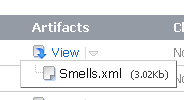


Although the Smells.xml file is not in a format which the CI system directly understands, it is an easily understandable format and would not be difficult to associate with an XSD file for display. (I am exploring with Dave at the moment whether the output could be altered for better integration with CI systems in the future.)


If you don't want to run the script as part of a CI process, it does have a GUI element to it - you'll note I used the SupressGUI parameter above, if you exclude this parameter then the GUI will be run to return the results to you.

The choice to use powershell rather than SQL to analyse the database scripts has both pros and cons, the trade-off being that whilst you can examine specific scripts outside the database, you don't have the easy extensibility for those not familiar with powershell. This may include many database devs/DBAs, although powershell is becoming more widely adopted. I feel that this is a distinguishing feature which gives TSQLSmells an edge - it allows scripts to be examined outside of a database, and to allow them to be examined before they are put into the final environment. Although I am in this example using a source controlled database, there is no reason why the database need be involved at all. This gives an ability for a sanity check to be light-weight - and therefore run ad-hoc more frequently.

I think that this script shows great promise and will for me form another method of screening code for potential issues. Whilst it's not a cast-iron guarantee of a problem, it's a useful way of highlighting potential problems, and gives a list of files to check in more detail.

Wednesday, 19 September 2012

Displaying database unit test package names in CI

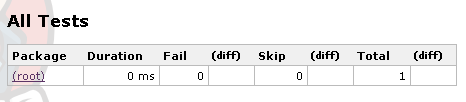
I've been using tSQLt tests for a while now with Continuous Integration, and one of the things I've noticed is that test results from nUnit or JUnit are presented with a nice package name, but that the tSQLt tests either have no package name, or list as (root) - depending on your CI system.

TeamCity

Jenkins

I have recently had the occasion to realise quite how annoying this can be, particularly if you're using Jenkins and running tests with the same names in multiple databases (TeamCity does list the database if you dig into the tests tab, but oddly not everywhere). This presents the problem that you can't easily see the name of the database in which a failure has occurred, to aid prompt troubleshooting.

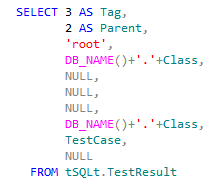
So - I've done a little digging, and found this post on why this might be the case for Jenkins. I then modified the way which tSQLt tests are output to achieve the test labeling which Jenkins needs, i.e. "classname.testname". I felt that database name was the best class to suit my needs, but you can modify to suit your requirements.

The modification is to [tSQLt].[XmlResultFormatter]. I changed the selects in the union, for example in the snippet below:


I've changed the 'Class' lines to read:


Do this for all the 'Class' lines in the procedure. There is 1 change in the second union, and 2 in each of the third and fourth unions.

Making this change gives us the following result when we re-run the tests from Continuous Integration:

TeamCity
Jenkins

As you can see this small modification helps to aid visibility to the test failure display.

Once you've modified the framework, you can either script the change as part of your build process, or if you have a source controlled database, then you can simply change the source controlled version of the [tSQLt].[XmlResultFormatter] stored procedure.

By the way - you can also output test execution times to your CI system by modifying this same procedure - see this mailing list post for details.

I think these changes really help to integrate database unit tests within the CI process, and make them easier to use in a complex development environment.

Wednesday, 12 September 2012

10 things I wish I'd known when I started with tSQLt and SQLTest

Simple Talk have published my article which details some tips and tricks I've learned about unit testing using the tSQLt framework. More details here.

Sunday, 2 September 2012

Agile Database Practice Training

As you will probably know from reading previous entries on this blog, I've become a convert to using Agile approaches to database development. When coupled with Continuous Integration and Test Driven Development, it can really help you to turn around database development quickly.

And it's not just developers who need to be part of this loop. Continuous Deployment and automated best practice testing can help allow DBAs to be responsive to deploying new developments, without huge amounts of extra work. The key advantage of this? You can turn around software developments more quickly - and that means you are more valuable, and your employer can do better in the market. At a the recent SQL in the City conference in London, Red Gate Software's Joint CEO Simon Galbraith gave a very impressive overview of how Agile approaches had helped Red Gate to achieve better market adoption and a product better tuned to market need by adopting Agile approaches.

The authors of the tSQLt database unit testing framework (which is what I use for database unit testing and test driven development) are running a course on how to get started. This covers everything from how to use tSQLt unit testing to write tests to how to adopt this within a CI environment and fit Agile development into the development cycle. The course follows the US tour of SQL in the City and you can find more details (and book your place!) on this website. It's not free, but should provide great business value to anyone looking to adopt Agile practices within database development, or as part of a wider development team. The course also includes a license for Red Gate's Source Control software, as well as an automation license and a discount on SQL Test - together worth $1235 - which gives you the tools necessary to get started.

It looks like a great course and one I wish had been held after the London SQL in the City event - the session that Dennis and Sebastian presented was a great introduction to tSQLt as a test framework.

Monday, 23 July 2012

Database CI the easy way
- A first look at Red Gate's new TeamCity plugin

Update (June 2014): Since this article was written, the folks at Red Gate have announced a new version of the plugin, which enhances and speeds up the setup process. You can read more about it here, and thanks to Alex for the comment below alerting me to it.

I was recently tipped the nod by David Atkinson of Red Gate that they have a new plugin for the TeamCity Continuous Integration system in Early Access Preview. The plugin allows GUI integration of SQL Compare with TeamCity build steps – a great improvement for those starting out with TeamCity who may not be familiar with how to set it up, and who might find command line steps a little daunting.

This means that this step in my earlier article at Simple Talk can now be streamlined and made much easier to use; this also applies to the steps I demonstrated at the recent SQL In The City conference in London.

Now, this new plugin doesn’t do things that you couldn’t do with the command line, but it does make the whole process easy to use, as well as easier for others to maintain. To me, this is a key part of getting people to use the system - if it is easy and well supported then you can more easily convince developers and managers that it can be adopted. It also makes your initial setup easier and avoids a lot of configuration errors! Of course, the nice interface doesn't prevent you using the command line if your needs are a little more bespoke.

So, let's have a look at the plugin then. Installation is manual, but easy – just drag and drop the plugin into the TeamCity Plugins directory. There’s some simple instructions included to help you if you’re not too sure.

One thing I should mention – you need to be on version 7.x of TeamCity. My test area wasn't, and I had to upgrade – but if you’re new to TeamCity you’ll probably be downloading and using the latest version.

As an example, let’s take an existing build configuration and update it to the new way of doing things.
So, my existing build steps (actually within a template, but the steps are the same whether you use templates or not) are: 


It's the second step, "Update database schema" which we are looking at. The actual step currently has the command line :
"C:\Program Files (x86)\Red Gate\SQL Compare 10\SQLCompare.exe" /scripts1:"%teamcity.build.checkoutDir%\Database" /database2:%DBName% /server2:"%SQLserver%" /ignoreparsererrors /sync
which I am sure you will agree is a little ugly.

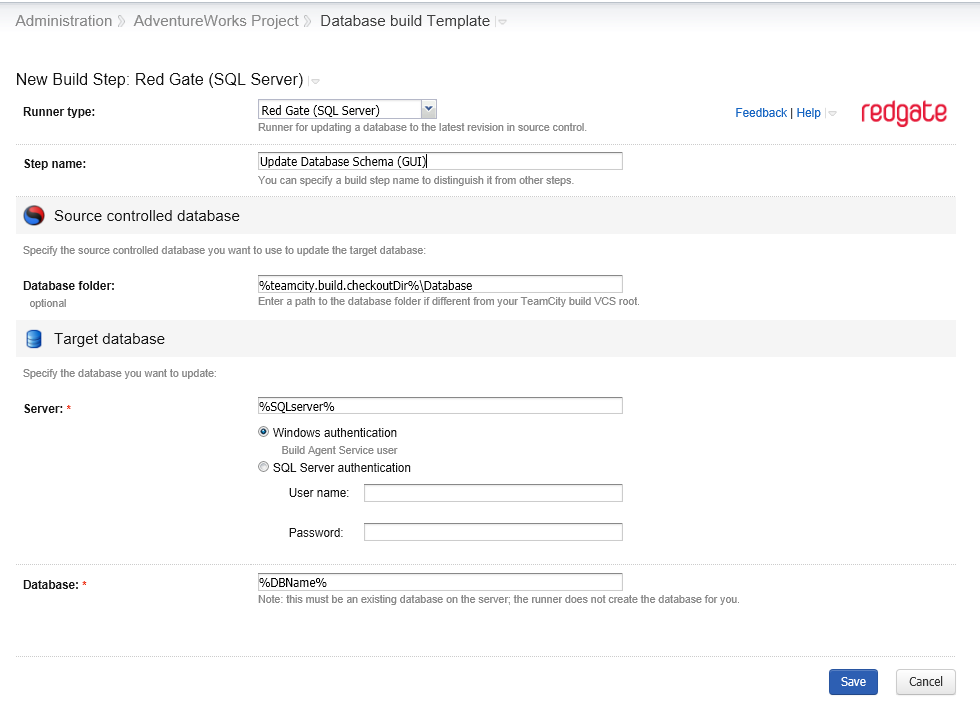
So let's create a new step (the Add Build Step link) and select the new build runner type of Red Gate (SQL Server):


This gives us a nice screen into which we can put the parameters previously used. I've used parameters here (which are defined as TeamCity build parameters) - but if you're not using parameters, standard file paths / server & database names are fine.

Note - I've used Windows Authentication here - I'd recommend you do the same if possible. That uses the Build Agent's credentials to authenticate to SQL Server. If you choose SQL Server Authentication, your access credentials will be stored and appear in the build log in plaintext, which isn't ideal. Red Gate assure me they are aware of this issue and are looking at how to resolve it.

So, having created the new step, I then disabled the previous step (there's nothing like having a simple rollback solution!) and re-ordered the build steps so the new one would execute at the same point in the build that the now disabled version had:


It's worth noting that the plugin helpfully makes the parameters used visible at this summary screen, which certainly helps to aid visibility of the process.

At this point, I ran a build, so that I can check the process is working.  The good news, of course, is that it did work.

Now, if we go to the build log of the process, we can see a little more detail:


A few things to note from this build log extract:
  1. The command line used is output as part of the build (highlighted above). This is great for debugging if things aren't quite as you expect, and gives a great starting point for your own tweaks to the process.
  2. The actual copy of SQL Compare used is unique to the plugin - it's not using the same version as if I'd launched it from the command line. This would be worth exploring if you're planning a version upgrade, and worth being aware of if troubleshooting. In this case the plugin is actually using a more up to date version than I have installed on my test system.
  3. Red Gate's Automation License is being used for this tool. As you will see from the screenshot above though, the tool comes with a free 14 day trial period.
As you can see this is a simple process to source control a database, and one that I can see being a great help in quickly getting up and running with continuous integration for databases, whether in a database-only build (as this simple example), or part of a bigger application test process.

I hope that Red Gate can expand this plug in to cover steps like clearing out the existing database (perhaps a tick box in the current implementation?) - this would cover my first step, which I think most implementations will want in order to give a predictable build. Another useful step would be to integrating with SQL Data Compare to load source controlled data into the database, which a number of implementations use. Ideally, a mature plugin would also run any SQL Test (i.e. tSQLt) tests defined in the database schema, and load the test results back in to TeamCity. This would then form a complete Continuous Integration solution for databases, without any need for the command line steps, and so allow easy adoption and maintenance. 

All in all I'm very pleased with the work that Red Gate have put in to producing an easy to use tool here; it's something that I can see fulfilling the majority of needs, and expanding over time to do more common Database CI tasks.

Why not drop Red Gate a line to give it a go yourself?